
Turn it sideways
Landscape gives the game more room. If the screen does not rotate, check your phone's orientation lock. In a regular browser tab, you can also try the client's fullscreen control where supported.
Give Chillera a place on your home screen. Launch it like an app and leave the browser address bar behind.
Show me how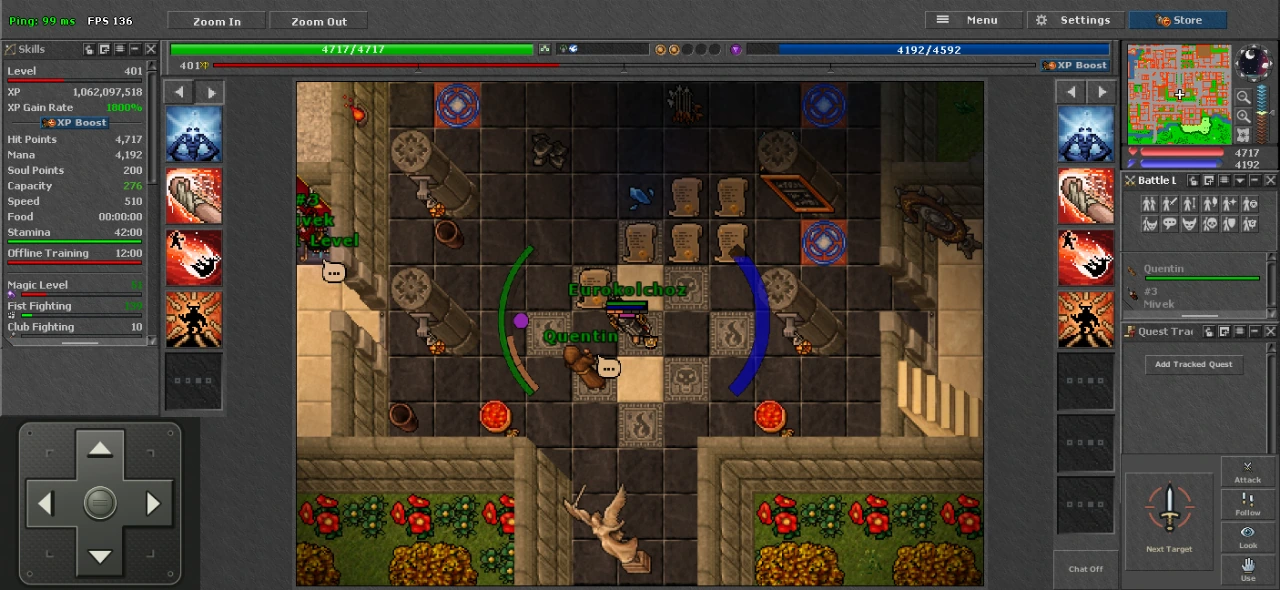
Choose your device. Start from the game page, then follow the steps below.
Visit game.chillera.net. If you arrived through Discord or another app, open the link in Safari first. Stay on the world selection page.
Tap the Share icon (a square with an arrow pointing up). Depending on your Safari layout, it may be inside the page menu.
Choose Add to Home Screen. If available, turn on Open as Web App, then tap Add. Missing the option? Check Edit Actions in the share sheet.
Return to the home screen and tap Chillera. Choose your world, let the client load, then sign in with your usual account.
Menu labels can vary by system version and language. Apple's official instructions ↗
Visit game.chillera.net in Chrome itself, rather than an in-app browser. Stay on the world selection page.
Tap the three dots in Chrome. Look for Add to Home screen, Install app, or Install and create shortcut.
Choose Install when offered and follow the prompts. A basic shortcut may still open a browser tab; use the web app installation option when available.
Return to your home screen or app drawer and open Chillera. Select a world, wait for loading to finish and sign in.
Menu labels can vary by browser version and language. Google's official instructions ↗
Opening the website in a normal browser tab still shows the browser interface. Use your home screen icon to open the installed web app. Some system indicators or the home gesture bar may remain visible.
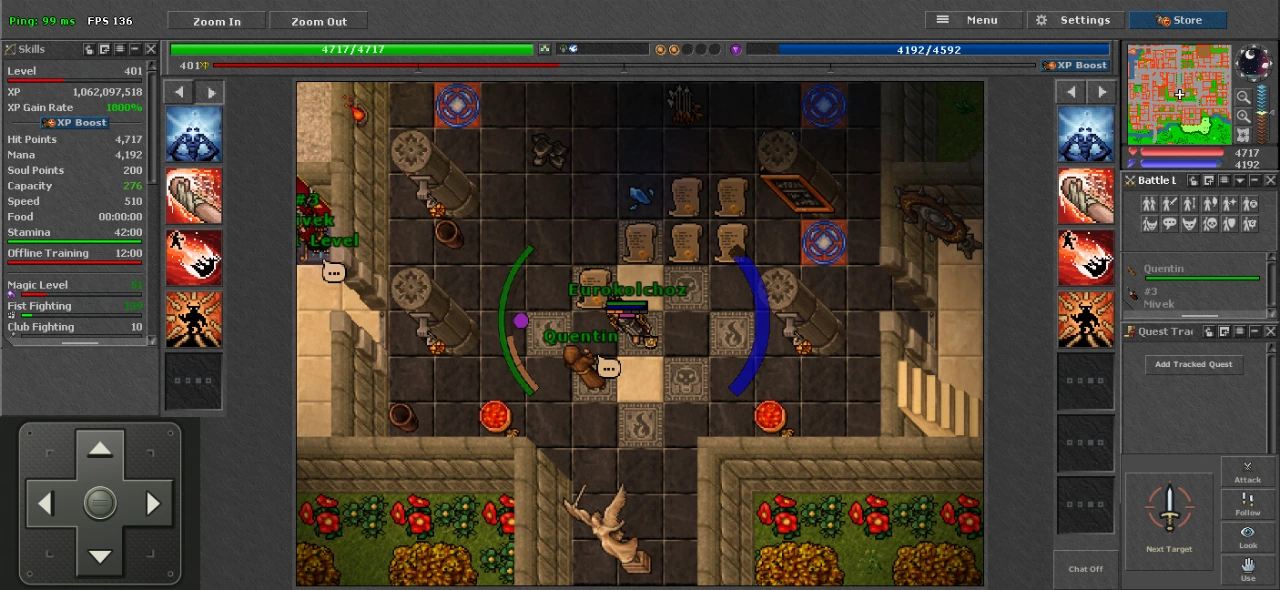
Landscape gives the game more room. If the screen does not rotate, check your phone's orientation lock. In a regular browser tab, you can also try the client's fullscreen control where supported.
Move with the D-pad and keep spells, items and actions on the two side bars. Use the arrows above each column to switch its three action sets independently. Hold an arrow for extra slots and lock options. The large sword button selects the next attack target; the smaller buttons let you choose a creature or object on screen. For quick looting, open Settings → Controls → General Hotkeys → Loot.
Pair a compatible controller with your phone, then press a button while the client is open. When detected, Settings → Gamepad lets you bind movement and gameplay. Assign action bar buttons through Assign Hotkey.
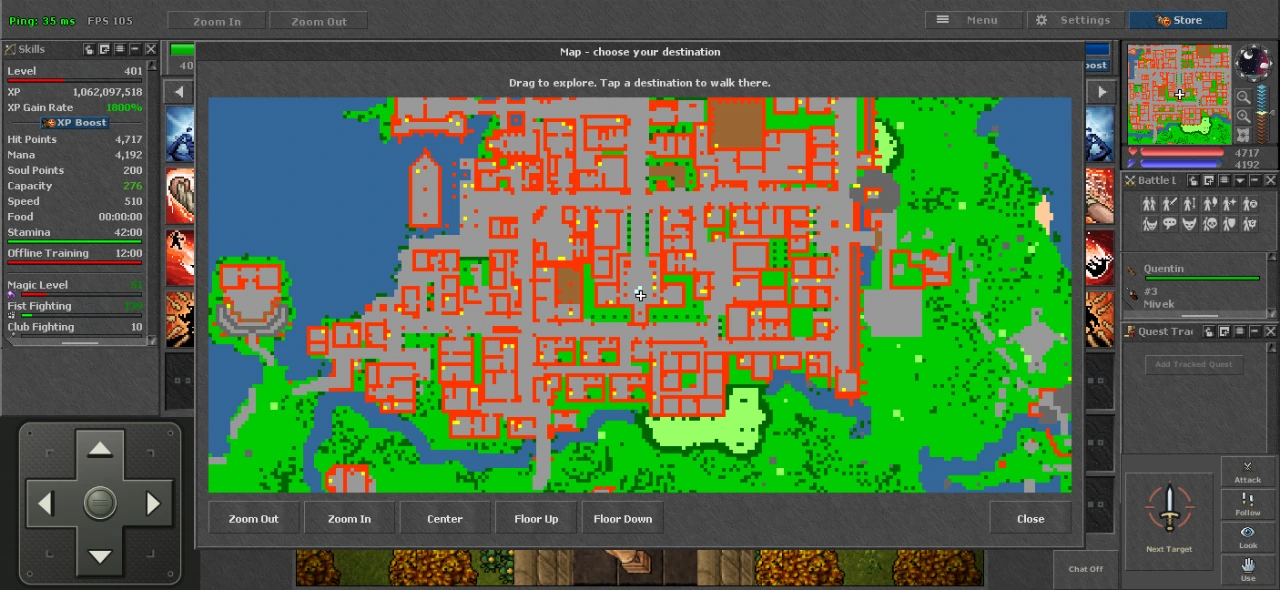
The mobile client prepares a large asset package. Use Wi-Fi for the first download and keep the app open. Later launches can reuse stored assets when your browser has enough storage; the loading screen shows what is happening.
Still seeing the address bar? Start with the first answer.
Launch Chillera from its home screen icon, rather than a bookmark or an existing browser tab. On iPhone, enable Open as Web App if that option appears when adding the icon. On Android, choose Install when offered. You can remove a shortcut and add it again using these steps. The phone's own status or gesture bar is separate from the browser address bar.
Use Safari on iPhone/iPad or an up-to-date Chrome on Android, in a normal tab. Leave an in-app or private browser first. On iPhone, look in Share → Edit Actions. Android menu wording varies; see the official help linked above. You can still play directly in the browser if installation is unavailable on your device.
No. This is the same Chillera web client. Choose your usual world and sign in with that world's account. Your characters and progress belong to the server.
You need an internet connection to play. Installing the web app removes browser clutter; it does not turn the online game into an offline game.
The client stores settings and cached assets locally when browser storage is available. An installed app may have separate storage from your browser tab, so you may need to download assets and set controls once there too. Clearing site data, private mode or storage cleanup can remove local data. Keep launching from the same icon for a consistent setup.
Controller detection and button layouts depend on the phone, browser and controller. Pair it in your phone's settings, open Settings → Gamepad, tap Check controller, then press A/Cross or move a stick. The input indicator shows what the browser receives. If your controller offers different modes, try Android/gamepad mode instead of keyboard or mouse mode. Touch controls remain available if your setup does not expose the controller to the browser.
Open the game page. Add it to your home screen. Make yourself at home.